AI Music Video Generator
Star in a music video with a friend. Add two portraits or one photo together, choose your stage, and turn a short story into a rap duet with music and vocals.
Make a Music Video Starring You and a Friend
Bring familiar faces into a shared performance with generated vocals, music and movement. Give your duo a story, choose the atmosphere, and create a short clip with a personal message.
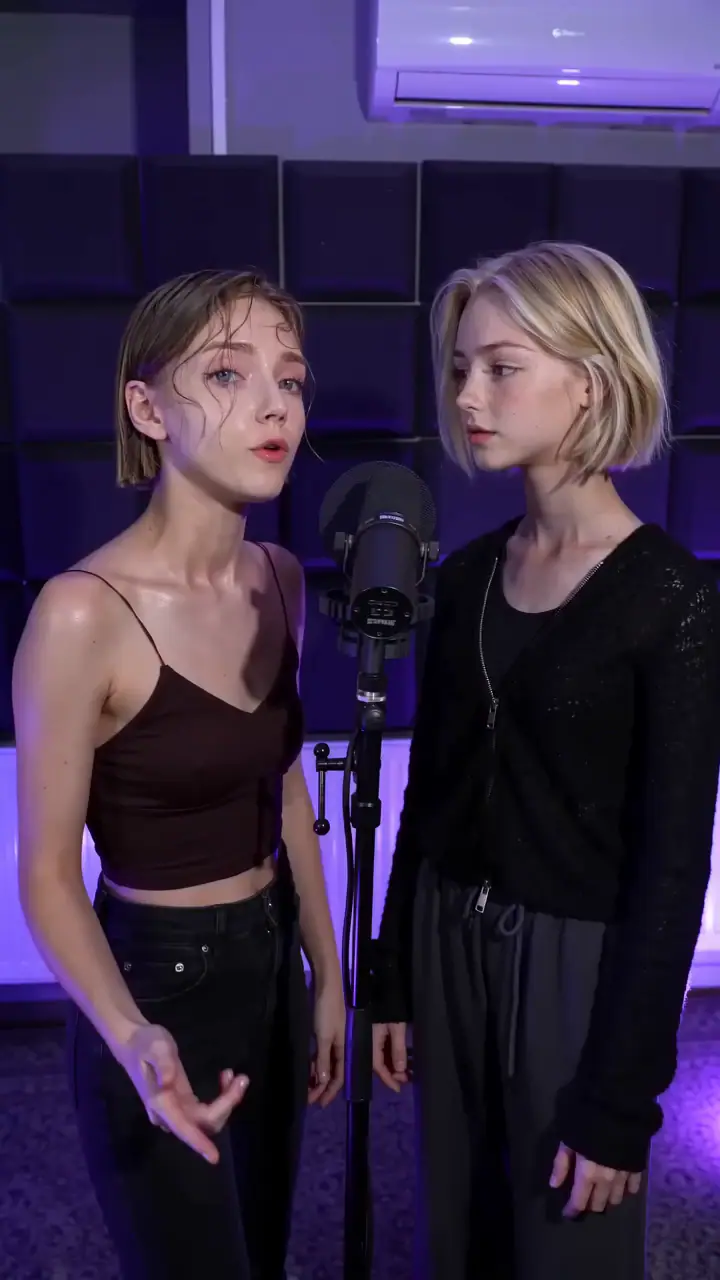 Best Friends
 Birthday
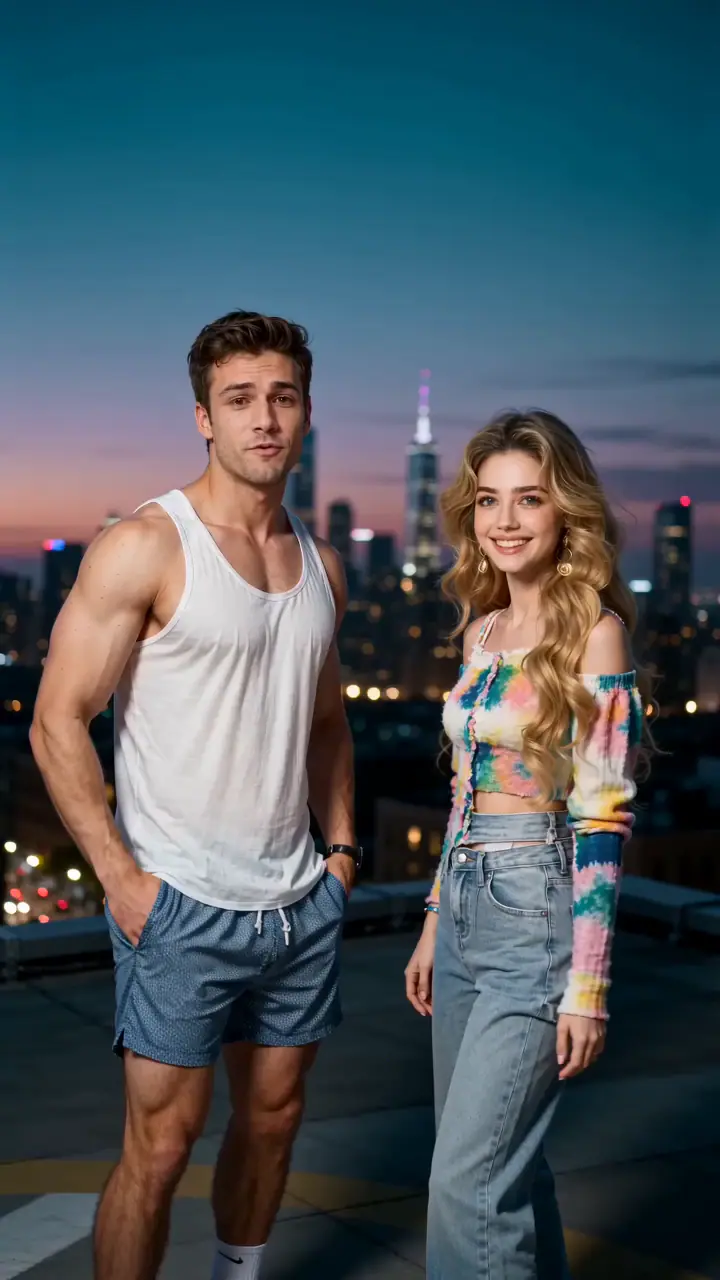 Couple
 Siblings
An AI Music Video Maker for Photo Performances
This AI music video maker puts two people from your photos into a short rap performance with original generated vocals and music. The pictures guide who appears on screen, your stage choice shapes the setting, and an optional story gives the duet a subject. The result combines moving performers and sound in one video you can watch and listen to.
Start with the people and the moment you want to celebrate. A reunion, a thank-you or an inside joke can become a performance without arranging a shoot or recording a vocal track. You can create directly on this page, then review the result before downloading the full video. This workflow is designed for a personal duet, with rap as its musical style.
How to Make an AI Music Video
Build the performance around one clear idea. Use the workbench above to choose the people, setting and output, then listen to the finished clip with sound.
- Add your performers. Upload two separate portraits or select one photo containing both people. In two-photo mode, Person 1 takes the left position and Person 2 the right. In a shared photo, the performers follow the left and right positions in that image.
- Set the atmosphere. Choose Hotel Lobby, Studio Booth, Street Cypher or City Rooftop. Pick the setting that fits the mood of your message; you do not need matching backgrounds in your photos.
- Give the music a subject. Add a name, an occasion and one memorable detail. A short story gives the generated rap a direction. You can leave the field blank for a general performance; a complete lyric sheet is not required.
- Choose your output. Open the video settings to choose a model, duration, resolution and aspect ratio. Available options depend on the model. Check the displayed credit quote after making your choices.
- Generate, listen and share. Sign in when prompted and create the video. Watch both performers and listen to the full soundtrack. Once you are happy with a completed paid full video, download it to send or post.
Music Video Ideas for a Personal Performance
A music video idea works best when the people, message and setting belong together. Choose the occasion first, then describe one detail the audience will recognize. These starting points guide the subject of the performance without locking the exact words.
- Make a musical greeting: Give someone a birthday message with their name and one affectionate detail, such as the meal they always cook for everyone.
- Celebrate a shared memory: Bring two friends into the same scene and use a memory from a trip, a school year or a long-running joke as the subject.
- Mark a milestone: Turn an anniversary or reunion into a duet about the moment you first met or the place you both remember.
- Send a playful message: Choose a harmless habit both people find funny. Keep the tone warm enough that the person pictured would enjoy receiving it.
- Say thank you: Recognize a teammate, collaborator or friend with a short performance about what they helped you achieve.
- Celebrate a new chapter: Use a graduation, a new job or a move to another city as the starting point for a duet about what comes next.
Keep the idea small enough for a short clip. One event and one recognizable detail give the music a clear direction. Describe the subject in the story field and choose the scene with the stage control, rather than asking the topic to redesign the whole video.
Make a Music Video from Photos of Two People
Your photos provide the visual references for the performers. Two separate portraits work even if the people live in different places, and a clear shared photo works when you want to start from a moment together. You do not need a filmed performance or matching photo backgrounds.
- Use clear facial detail. Choose sharp images with even lighting. A face hidden by heavy shadows, sunglasses or a hand gives the generation less useful information.
- Keep both performers in frame. Review the crop before creating. In a shared photo, keep both faces visible. In two-photo mode, use one person in each slot and leave enough room around the head.
- Make the roles easy to read. Use separate portraits if the people overlap or the group photo is crowded. Check the left and right positions so the references match your intended duo.
Clear references help guide the appearance, but likeness can change during motion. Review both people throughout the video. Use photos you own or have permission to use, especially when you plan to share the performance publicly.
Choose the Setting for Your Music Video
The setting gives the performance a visual mood. Choose from the four stage options in the workbench and keep your story focused on the message. Each option guides the environment and lighting while the two performers remain the center of the scene.
- Hotel Lobby. Warm amber light and an elegant lobby provide a celebratory setting for a greeting, reunion or special occasion.
- Studio Booth. A recording studio with microphones, acoustic panels and violet lighting gives the duet a focused music session atmosphere.
- Street Cypher. An urban street setting with concrete textures and cool light gives a lively shared performance a more informal feel.
- City Rooftop. A city skyline and twilight lighting create an open outdoor atmosphere for a personal message or a reflective moment.
Explore the lobby setting in more detail with our Hotel Lobby AI generator. You can also choose any of the available stages in the workbench on this page.
Choose Your Music Video Format and Quality
Plan for a short performance rather than a complete song. Pick a duration that suits a greeting or one story idea, then choose the shape for the screen where people will watch. The available durations, formats and resolutions follow the model selected in the workbench.
- Vertical video (9:16). A useful format for TikTok, Reels and YouTube Shorts, with the performers arranged for viewing on a phone.
- Square video (1:1). A compact frame for a feed post or a personal message where a square presentation fits.
- Widescreen video (16:9). A landscape option for larger-screen playback or for adding the clip to an edit of your own.
Choose the model and resolution for the way you will use the video, and check the quote after changing settings. More pixels do not guarantee better likeness, timing or wording. The final picture and soundtrack still need a review before you share them.
See music video credit packs and pricing to choose a pack. Full-video credits are quoted for the settings you select, so there is no single price for every output.
Original Vocals and Music for Your Video
The performance includes generated rap vocals, a melody and a beat, so you can start from photos and an idea without recording a song first. The soundtrack is created as part of the video. A photo guides a performer’s appearance; it does not supply that person’s real voice.
This workflow creates a new rap duet rather than placing visuals over a song you upload. It does not accept a finished audio track or provide exact lyric timing, a music timeline or voice cloning. The story guides the subject, and words, pronunciation and mouth timing can vary. Listen to the result instead of treating a typed sentence as a guaranteed lyric.
For more guidance on rap topics and performances, explore our AI rap generator.
Create a Short Music Video for Reels and Shorts
A short music video should communicate its idea while the viewer can still recognize both people and hear the performance. Think about the audience and the message before posting, then review the complete moving clip with sound.
- Watch the whole performance. Check both faces, their positions and the movement from start to finish. A paused frame cannot show whether someone becomes hard to recognize during a turn.
- Listen for the message. Make sure the words fit the occasion and the vocals and music are audible. Regeneration can produce different wording, so review each result on its own.
- Prepare it for your audience. Download the completed full video and add a caption using your own posting or editing app. Keep personal jokes friendly, get permission from the people pictured, and identify the performance as AI generated when sharing publicly.
AI Music Video Generator FAQ
What to know about photo inputs, original audio, song uploads, short clips, credits and downloads.
Make Your Own AI Music Video
Choose your performers, set the scene and turn a personal story into a short musical performance.