How to Make an AI Video of Two People From Separate Photos
Learn how to make an AI video of two people from separate photos, choose a two-person workflow, prepare portraits, and review the result before sharing.
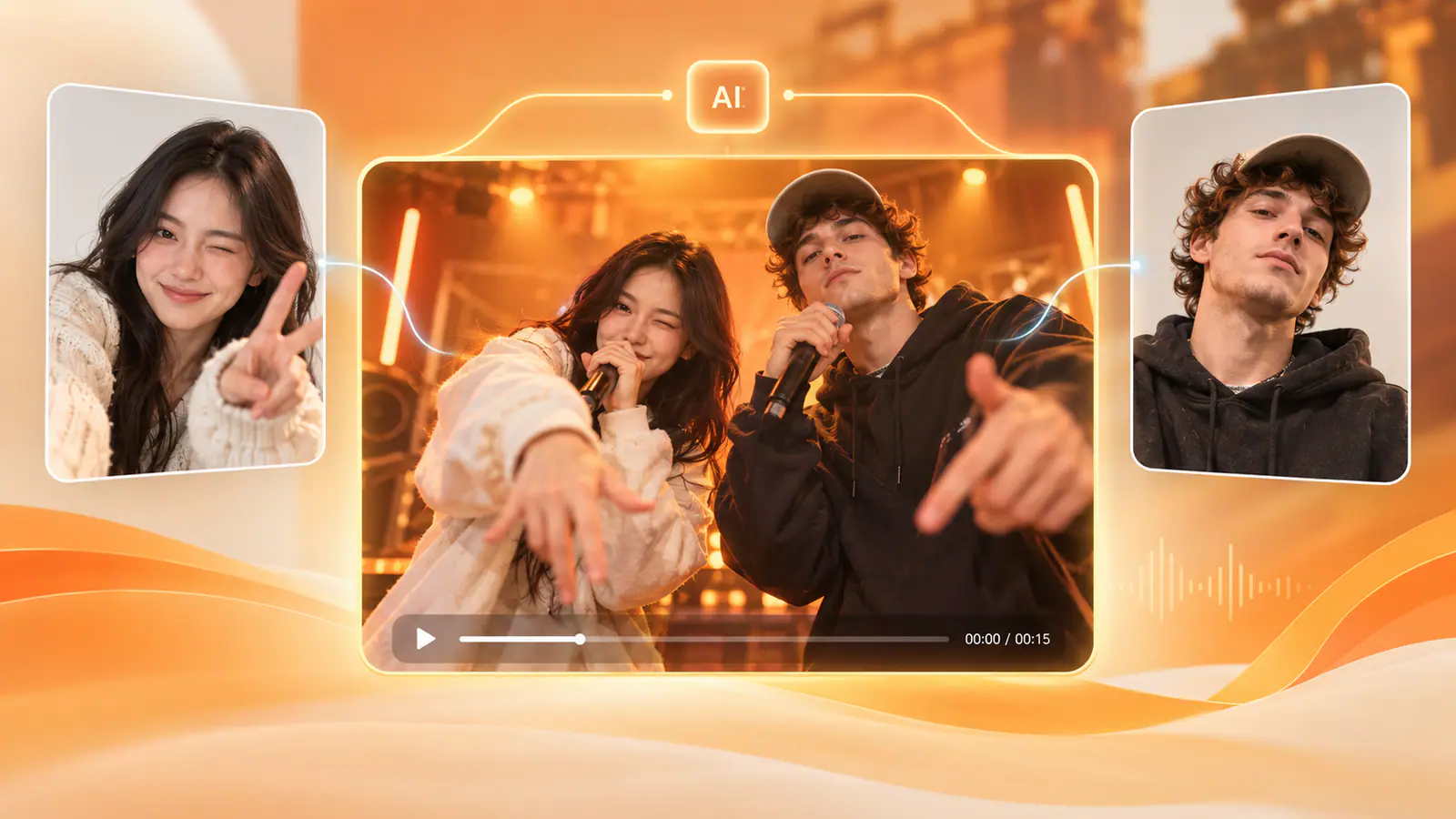
Yes. Some AI video workflows let you use one photo for each person and place both identities into the same generated scene. You do not necessarily need an existing photo of the two people together.
The catch is that not every AI video generator is built for this job. Some accept only one starting image, some use several reference images but leave composition to a prompt, and some use a ready-made two-person performance. The right route depends on whether you want a flexible cinematic scene or a reliable short format in which two people perform together.
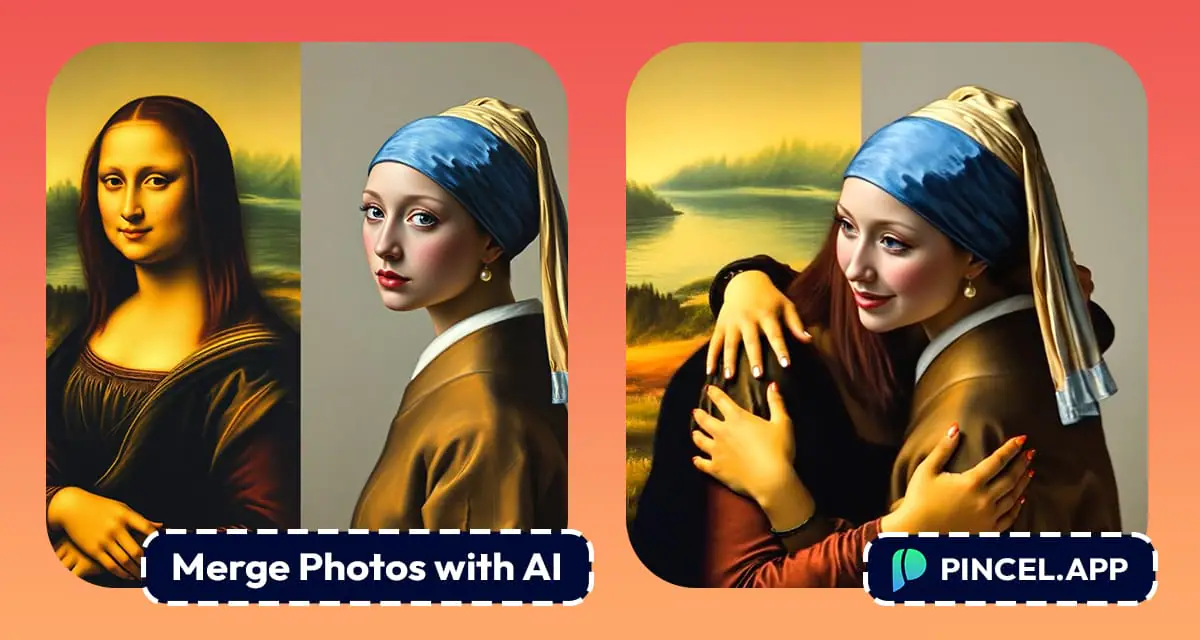
When a tool only accepts one starting image, a composite-first workflow is one way to turn two separate portraits into a shared video setup.
Can AI Combine Two Separate People Into One Video?
Yes—but the workflow matters more than the headline. AI needs enough information to keep track of two identities, decide who stands where, and animate both people without collapsing them into one ambiguous subject.
There are three common approaches:
- Single-image image-to-video tools. These animate one picture. If this is all a tool accepts, you normally create one clean two-person composite first, then animate that image. It can work well for simple movement, but the composite becomes the model’s only visual reference.
- Multi-reference video tools. These accept more than one image, then use prompts or controls to determine composition, action, and camera movement. They offer more freedom, but may require more retries when the two people have different source angles or lighting.
- Purpose-built two-person templates. These give each person a dedicated input and place both into a predefined performance or scene. They are usually the least demanding option when the goal is a short, shareable duo clip rather than an open-ended interaction.
That distinction matters. A tool that is excellent at animating one portrait is not automatically good at keeping two identities stable in one frame. Conversely, a two-person template trades some creative control for a more defined setup: the stage, camera rhythm, and movement are already designed around two performers.
What You Need Before You Start
Prepare one clear image for each person. A head-and-shoulders portrait is usually the safest choice because it gives the model enough facial information while leaving room for a new body pose and scene.
You do not need:
- matching backgrounds;
- photos taken on the same day;
- a real two-person selfie; or
- matching clothes in the original photos.
You do need images that make each person easy to identify. Ideally, both photos have a visible face, normal lighting, and no major obstruction. If one person is a sharp, front-facing portrait and the other is a dim, extreme side profile, the model has to solve two very different reference problems at once.
Before uploading, decide who should appear on the left and who should appear on the right. This tiny decision prevents one of the most common surprises in duo generation: the correct faces appearing in the wrong roles.
Step-by-Step: Make a Two-Person AI Video
1. Choose two clear photos
Start with a separate portrait for Person 1 and Person 2. Use the most recent, natural-looking image you have—not necessarily the most dramatic one. A neutral expression, visible eyes, and an uncropped forehead and chin usually give the model a more dependable reference than a highly filtered selfie or a tiny face pulled from a group photo.
If you only have old photos, that is fine. Pick the version where each person is most recognizable. The goal is facial clarity, not perfect photo quality.
2. Give each person one input image
Avoid treating a group photo as a shortcut. A group image asks the model to infer which face belongs to which role and can cause it to borrow features from the wrong person. If possible, crop a group shot down to one clear individual per input. Better still, use a dedicated portrait for each person.
This is also the point to check framing. Keep enough of the face in view for the model to read the full shape: forehead, eyes, nose, mouth, jawline, and hairline. Do not crop tightly across the chin or forehead just to make the image look more dramatic.
3. Pick a workflow that matches the outcome you want
Ask one practical question: Do I need a custom interaction, or do I want two people to perform together in a ready-made format?
For a custom scene—such as two people walking along a beach, hugging, or appearing in a specific story—you may need a composited starting image or a multi-reference generator with a detailed prompt. Plan on doing a little more setup and reviewing the result closely.
For a short, performance-led clip, a two-person template is often a better fit. It already knows that there are two people in frame and has movement that supports the format. This is where Airapduo is deliberately narrower and more useful: it is built around a two-person rap performance, not positioned as a universal generator for every kind of AI interaction.
4. Upload Person 1 and Person 2 separately
In Airapduo’s current workbench, choose “Bring us together,” then add one photo in the You slot and one in the Your favorite person slot. The inputs are separate on purpose. Check each preview before generating, especially if either photo needs cropping.
Treat the order as part of the instruction. Person 1 is assigned to the left performer and Person 2 to the right performer in the two-photo flow. If the roles matter to the joke, dedication, or social post, do not skip this check.
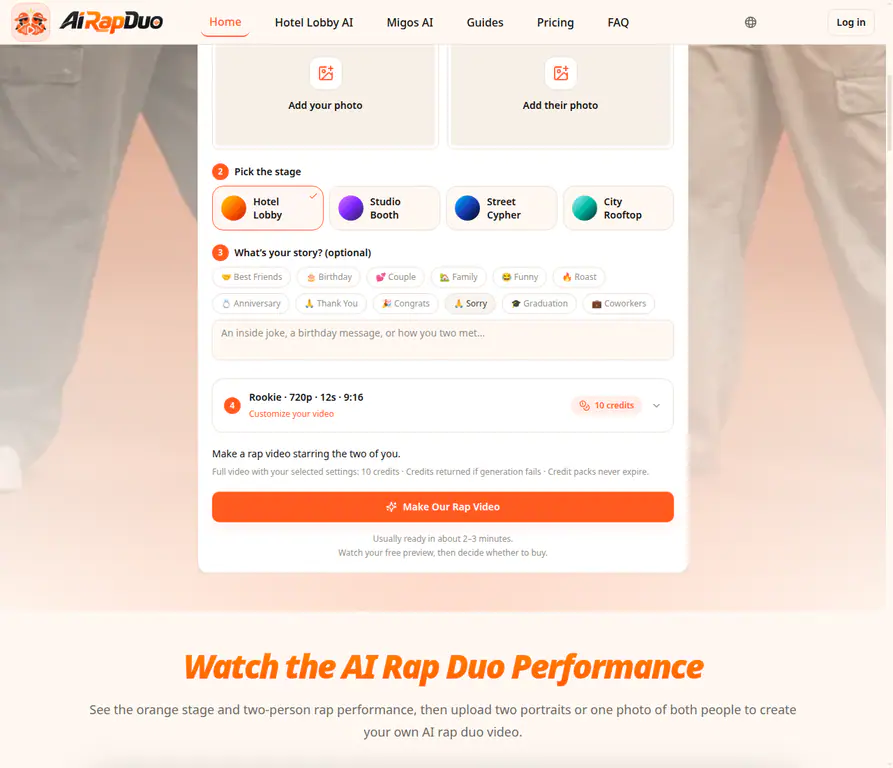
The separate input slots make the intended duo and the scene choice clear before generation.
5. Choose the scene and the reason the two people are together
A good duo video needs a simple shared premise. It can be an inside joke, a birthday message, a friendly roast, an anniversary, or a “we finally made it” moment. Keep the premise short and recognizable rather than trying to describe an entire story.
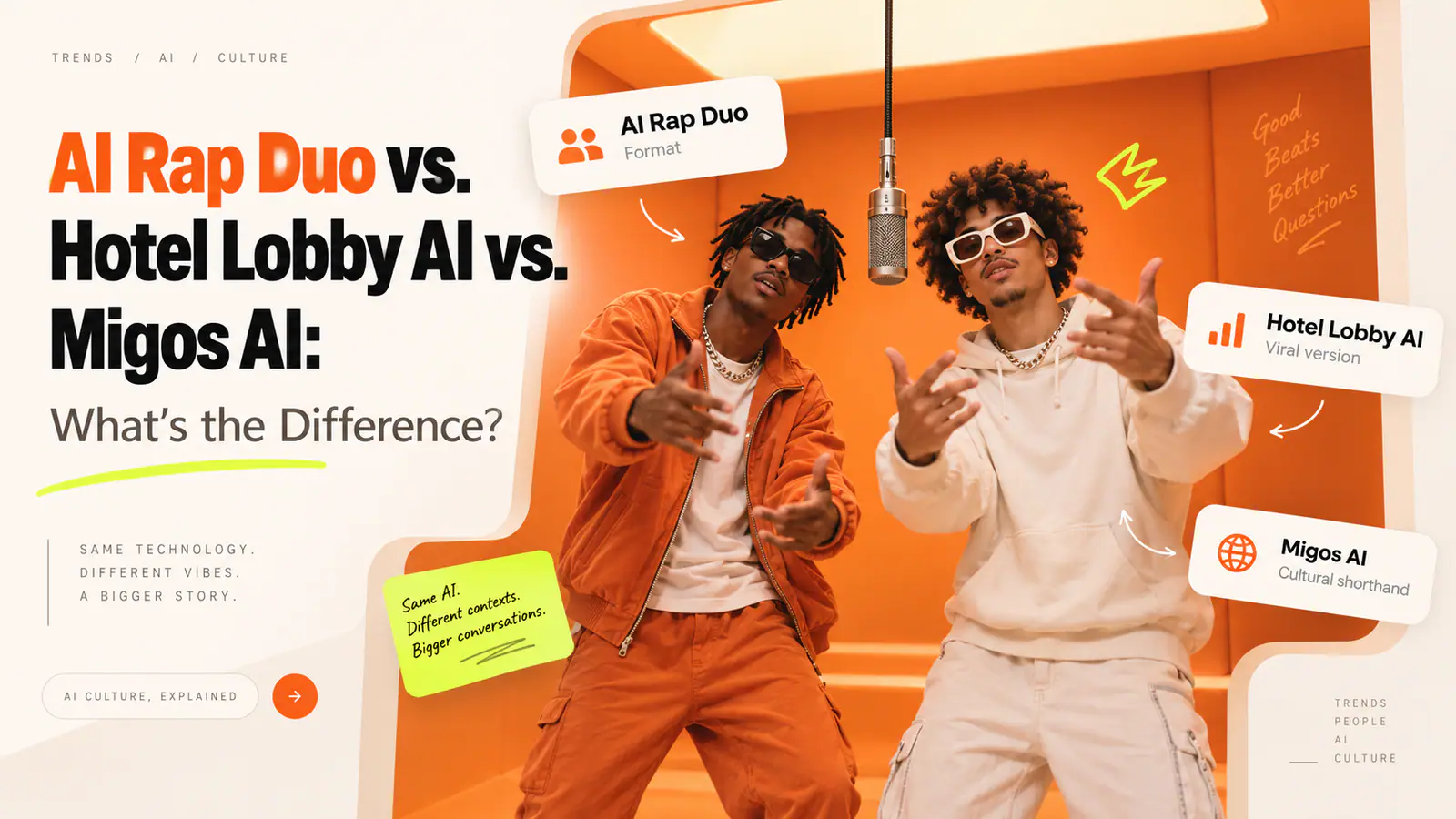
On the main Airapduo workflow, you can select a performance setting such as Hotel Lobby, Studio Booth, Street Cypher, or City Rooftop and add an optional topic. If you want the trend-forward orange-stage look specifically, the Hotel Lobby AI flow is the relevant scene route. The scene, camera movement, and rap-performance structure are built in, so this is not a prompt-heavy workflow.
For a birthday, choose one specific detail rather than a generic “happy birthday” line: a milestone age, a running joke, a hobby, or the way the two people know each other. The Birthday Rap Video workflow is designed for that kind of short duet and lets you pair the birthday person with a friend, partner, or sibling.
6. Generate the first version without overcorrecting
Use the first output as a test, not a final verdict on your photos. The first generation tells you whether the faces are stable, whether the left/right roles are right, and whether the chosen stage gives both people enough room.
For a template-led duo video, resist the temptation to solve every possible issue with a longer prompt. Your best controls are usually the source portraits, crop, order, stage, topic, model choice, duration, and aspect ratio. Change one or two of those variables at a time so you know what actually improved the result.
7. Review the whole clip, not just the opening frame
The first second can look convincing while a face drifts later in the video. Watch the complete clip with sound and look for identity changes when the performers turn, lean, or gesture. Check the shoulders and hands too: a stable face is only part of a believable duo.
Review motion through the full clip; two-person scenes can change quickly once gestures and camera movement begin.
If the output is close but not quite right, make a targeted retry:
- wrong side: swap the two input photos;
- one face is weak: replace only that person’s image with a clearer portrait;
- faces start blending: use simpler, more evenly framed photos and reduce competing visual details;
- one person disappears: choose a wider stage or source photo with a more centered face;
- motion feels crowded: use a shorter duration or a stage that leaves more space between performers.
8. Download, caption, and share responsibly
Once both people remain recognizable, download or share the version that fits the occasion. A short vertical cut works naturally for a group chat, Reel, or TikTok; a square or widescreen export may make more sense for a birthday post or a longer montage.
Do one final human check before publishing: are the faces correct, is the generated message appropriate, and do both people want this shared? If you need an exact written name, age, lyric, or dedication, add it as a caption or in a video editor after export. Generated vocals and lyrics are not a reliable substitute for word-for-word copy.
Best Photo Tips for Two-Person AI Video
The best source images are not necessarily studio-quality. They are the ones that make identity obvious to the model.
- Match face visibility, not aesthetics. Two plain, well-lit portraits usually work better than one polished selfie and one dark restaurant photo.
- Avoid sunglasses, masks, hands over the face, and strong beauty filters. They remove the distinctive landmarks the model needs.
- Use one person per image. A friend standing next to someone else in the reference photo can confuse the input.
- Keep the forehead and chin in frame. A full face gives the model more stable geometry to preserve.
- Use a medium-to-high-resolution original where possible. A huge file is not required, but a blurry screenshot or heavily compressed thumbnail gives the model less to work with.
- Choose relaxed expressions. Extreme laughter, pouting, a wide open mouth, or an exaggerated angle can be fun in a photo but harder to keep consistent through motion.
- Do not worry about background mismatch. Separate-photo workflows expect the people to come from different places. Face clarity matters much more than whether both original images were taken against the same wall.
A simple rule helps: if a friend who knows both people can identify each face instantly from the source image, the model has a better starting point.
Common Problems—and What to Do About Them
| Problem | Why it happens | First fix to try |
|---|---|---|
| The faces get mixed | The references are ambiguous, cropped too tightly, or contain other visible faces | Replace group shots with one-person portraits and keep the full face visible |
| The wrong person appears on the wrong side | The input order is not explicit or the crop changes how the model reads the image | Confirm left/right roles before generating; swap the source images for the retry |
| A face changes midway through the clip | Turning, motion, and changing light are harder than a still opening frame | Use a sharper, more front-facing portrait and review the full output before sharing |
| The output is blurry | The reference is low-detail, heavily filtered, or too small | Use the original photo rather than a screenshot; choose a higher-quality setting if available |
| One person dominates the frame | A tight stage, uneven source framing, or larger-looking reference gives one person more visual weight | Re-crop the dominant face more loosely or pick a roomier scene |
| The result feels like two solo clips, not a duo | The generator is optimized for single-character animation | Use a true two-person template or make one composed two-person starting image first |
| The audio says something unexpected | Generated vocals are interpretive rather than an exact text field | Keep the topic simple, listen before sending, and add exact wording as a caption afterward |
The most useful troubleshooting habit is to alter one variable at a time. If you replace both photos, switch scenes, lengthen the clip, and change the prompt in the same retry, you will not know what fixed—or caused—the issue.
Things You Can Make With Two Separate Photos
Once you stop treating “not photographed together” as a limitation, the format opens up a few genuinely useful use cases:
- Best-friend rap videos built around a running joke or an old shared memory;
- birthday videos starring the recipient and the person who always makes them laugh;
- couple clips when the two photos were taken on different trips or in different cities;
- siblings and family duos for a lighthearted celebration montage;
- parent-and-adult-child videos built around a thank-you, graduation, or milestone;
- coworker shout-outs for a team win, farewell, or inside-office joke; and
- funny pairings that put two opposite personalities into the same performance.
The best examples have one clear relationship and one clear reason to share. “Two people who look good in a video” is vague. “The birthday person and the sibling who always steals the spotlight” gives the clip a point of view.
Which AI Tool Should You Use?
There is no single “best” category for every two-person result. Choose by the outcome you need.
| Tool type | Best for | What to expect |
|---|---|---|
| General AI video generator | Broad visual concepts, stylized scenes, and flexible camera ideas | Often starts from one image or a prompt; you may need to compose two people first |
| Lip-sync or avatar tool | Speech-led clips and talking portraits | Usually strongest for face-to-camera delivery, not full-body two-person staging |
| Multi-reference workflow | Custom scenes where each person needs an independent reference | More control, but more prompting and more iterations |
| Two-person template | Fast, shareable scenes with a defined format | Less open-ended, but clearer roles and a workflow designed for two performers |
| Dedicated two-person rap generator | Short music-led duo performances | Built-in stage, cadence, motion, and identity slots reduce setup work |
If your goal is specifically to make two people perform together in a short rap-style video, Airapduo is built around that workflow. It gives each person a separate photo slot, makes the left/right roles explicit, and supplies the shared performance rather than asking you to invent a full scene prompt. That makes it a good match for friends, couples, siblings, birthday pairs, and playful social clips—not for every possible interaction a two-person generator might create.
Frequently Asked Questions
Do the two people need to be in the same original photo?
No. A two-person workflow can use one portrait for each person. In fact, separate portraits are often easier to control because each input is unambiguous. You only need a real shared photo if you prefer to start from the two people already together.
Can I use old photos?
Yes, provided both faces are visible and reasonably clear. Old photos with a recognizable full face can work better than a recent image that is tiny, filtered, or heavily shadowed. Expect more variation if the source is very grainy or damaged.
Can I use celebrity photos?
Do not assume that a publicly available photo gives you permission to create or share a likeness-based video. Check the tool’s rules, respect rights of publicity and copyright, avoid misleading impersonation, and get permission for anyone whose image you upload. For private fun, use your own photos or photos you are authorized to use.
Why does AI change the face?
A video model has to generate new angles, expressions, lighting, and movement beyond what exists in a still photo. The farther the performance moves from the source pose, the greater the chance that individual facial details will drift. Clear, front-facing portraits and a full-clip review reduce the risk; they do not remove it entirely.
Can I use one group photo instead?
You can, but only when the intended people are easy to separate and both faces are fully visible. Crop each individual into their own input when possible. Avoid a crowded group image, because the model may borrow features from bystanders or fail to preserve the intended two people.
Can I make two people sing together?
You can make a music-led duo video, but distinguish between a generated performance and a controllable recording. A template can create vocals and music, yet it may not guarantee exact lyrics, names, pronunciation, or voice cloning. For exact words, create the video first and add approved audio, captions, or a title in an editor afterward.
What if the two source photos have completely different lighting or backgrounds?
That is usually acceptable. In a two-person template, the new scene replaces the original surroundings anyway. Prioritize face visibility and a similar head-and-shoulders crop. Background mismatch is much less important than whether both people are clearly recognizable.
The Simple Answer
You do not need to wait for a photo that was never taken. Choose one clear portrait for each person, give each identity its own input, decide the order and scene, then review the full result before sharing. For a built-in rap-performance format, that turns two separate memories into one short moment the two people can actually share.